
A moment of calm on your screen
Prayer Times
Prayer Times
Always in view. Quietly.
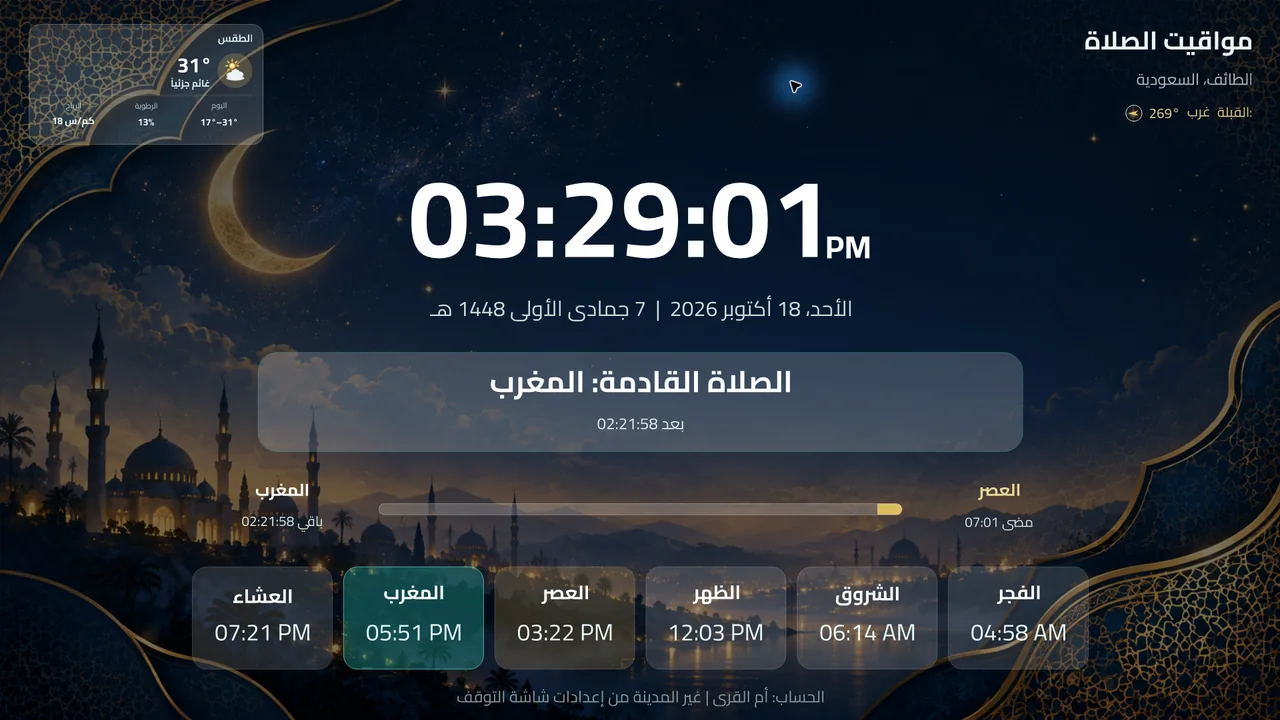
Turn your idle screen into a gentle reminder to pray. See the time, your city’s prayer schedule, and an alert when prayer time begins — in a design made for your screen.
Your screen at a glance
◷
Your next prayer, at a glanceCountdown and alert when prayer time begins
Small details. A difference every day.Everything you need.
Everything you need.
On one screen.
A clear interface that runs quietly in the background
and keeps prayer times close at hand.
The time, clearly displayed
The clock, Hijri and Gregorian dates, and a countdown to the next prayer.
Your city’s prayer times
Choose your location on the map, then adjust the calculation method, time zone, and minute offsets.
Alerts with your choice of sound
Choose which prayers to be notified about and assign a sound file to each one.
Fits your screen
Adapts to your screen resolution, with font, background, and dimming options.
Make it your own
Backgrounds made for calm.
Choose from the app library,
or add your own image in Settings.



- 1
Download and install the app
Open the installer and follow the steps to choose your city.
- 2
Choose your location and sounds
Check your city and time zone, then choose your alerts and background.
- 3
Let it remind you
The app runs with Windows and displays an alert when prayer time begins.
App updatesNew improvements,
New improvements,
delivered to your device.
The update-enabled version checks periodically while the app is running and connected to the internet, then downloads the latest release. Windows may request administrator approval to complete installation.
You may be wondering…
Does the app need an internet connection all the time?
Prayer times are calculated locally. The map, weather, and update checks need an internet connection.
How do I get automatic updates?
Install an update-enabled version first. The app will then check for releases periodically and preserve your settings when upgrading.
Where can I change the background and sounds?
Open Settings from the app icon next to the Windows clock. You’ll find Appearance, Sound, and Alerts tabs, along with the user guide.
Your experiences
Leave a reviewYour words matter
★★★★★
اشكركم على البرنامج المميز ......جزاكم الله خير
★★★★★
السلام عليكم
اشكر القائمين على هذا البرنامج الرائع ...
1 / 2